Upload a File
To upload a new asset, users can start by clicking the + Nuovo Asset button located at the top right corner of the screen.

Clicking this button will open a side panel, allowing users to upload a new asset into the database.
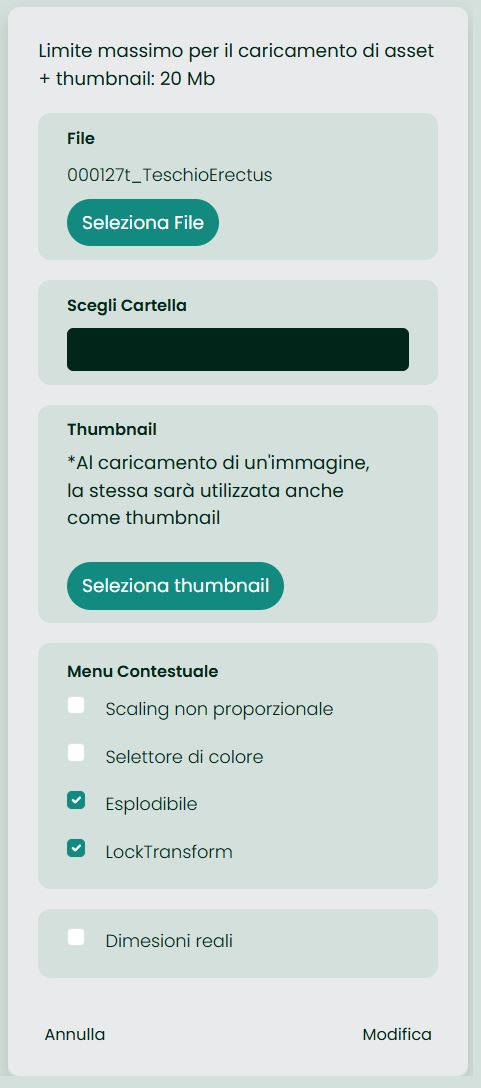
Choose a Folder
Select the folder where the asset will be stored from the list of existing folders. If no folder is selected, the file will be stored outside of any folders.
Upload an Asset File
Choose the asset file you wish to upload. Currently, the supported file formats include:
- Images: .jpg and .png
- Videos: .mp4
- 3D Models: .glb
- Documents: .pdf
Choose a Thumbnail
While optional, uploading a thumbnail is recommended to help identify the asset quickly. Users can upload an image to serve as the thumbnail for the asset. If the asset file itself is an image, it will automatically be used as the thumbnail. The option to skip the thumbnail upload is also available if a separate thumbnail is unnecessary.
Automatic Thumbnail Generation
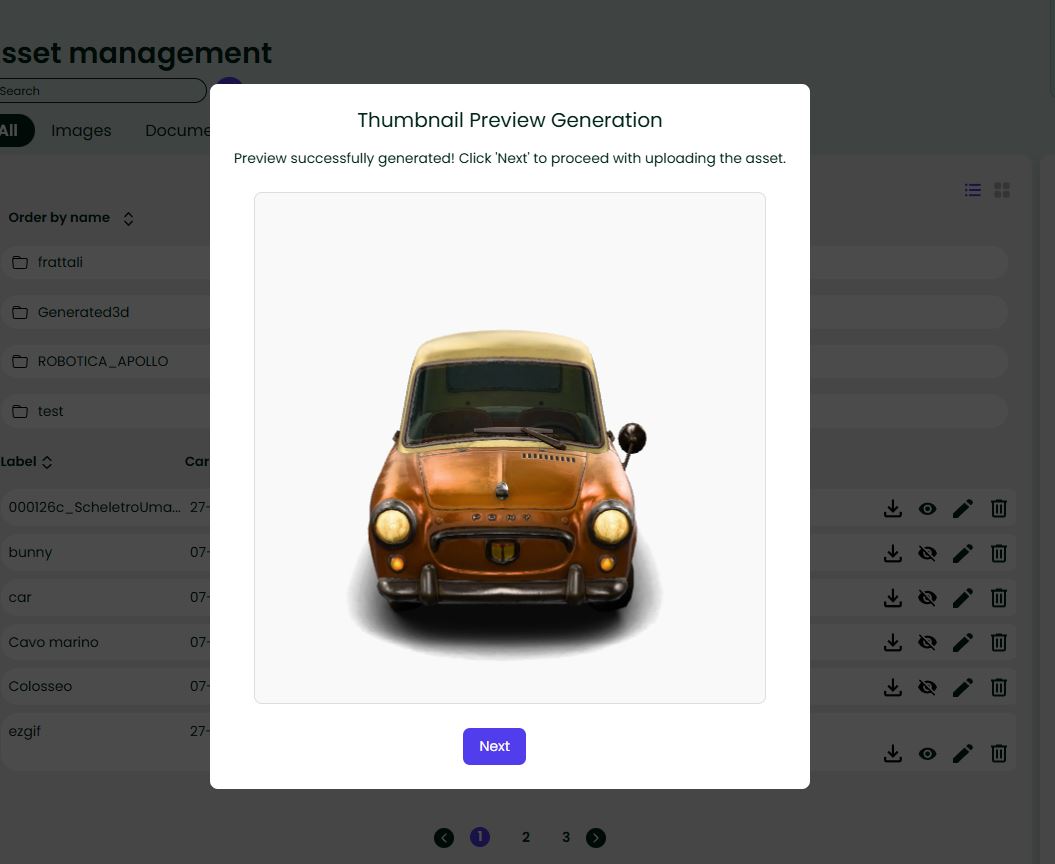
Starting with version 2026.1, the system automatically generates thumbnails for uploaded 3D models (.glb files). The entire process provides clear visual feedback:
- A modal overlay displays the generation status with messages like "Generating thumbnail..." and "Thumbnail generated successfully"
- You can preview the generated thumbnail before completing the upload
- If generation fails or times out, you can manually upload an alternative thumbnail
- This feature ensures all 3D assets have a visual preview without manual intervention
The maximum size for each upload, which includes the combined size of the file and the thumbnail, cannot exceed 20 MB.
Contextual Menu Parameters
When uploading a file, you can enable additional options that control how the asset behaves once spawned in-world:
| Flag | Purpose |
|---|---|
| Non-proportional Scaling | Allows resizing the asset without keeping the original aspect ratio. |
| Color Selector | Shows a colour-picker if the asset offers multiple colour variants (3D only). |
| Explodable | Lets users “explode” the model, separating its component parts (3D only). |
| LockTransform | Disables every interaction with the asset until an authorised user unlocks it. |
| Real-world Size | Spawns the model exactly at the scale defined in the file. If left off, the engine normalises the asset to fit inside a 1 m³ bounding box. |
Enable the flags you need, then click Salva to finish the upload (or Annulla to cancel).
Save
Starting with the current version, you can now modify an asset that was previously uploaded.